# Authentication
Every request to the Multigate API carries an **API key**: a long secret that identifies your software to Multigate. You send it in the `mp-api-key` header. There is no sign-in call, nothing expires, and there is no token to renew.
## How API keys work
```mermaid
sequenceDiagram
autonumber
participant Admin as Your administrator
participant Dash as Multigate dashboard
participant Srv as Your servers
participant MG as Multigate API
Admin->>Dash: Generate API key
Dash-->>Admin: The key, shown once
Admin->>Srv: Store it in your secrets manager
loop Every request
Srv->>MG: Request with the mp-api-key header
MG->>MG: Check the key, its API user, your business and your IP allow-list
MG-->>Srv: Response, acting as your API user
end
Admin->>Dash: Revoke the key
Srv->>MG: Request with the revoked key
MG-->>Srv: 401
```
- **One key for your whole organisation.** A key isn't tied to one product or service. The same key works for every Multigate product your organisation has subscribed to (accounts, collections, payouts, FX, trade finance and the rest), through the same base URL. What it can do is set by your subscriptions and by its API user's permissions, not by the key.
- **One key, one API user.** Each key belongs to your business's **API user**: an account for your software, separate from the people who use the dashboard. Multigate creates the API user when it sets up your business. A request with the key acts exactly as that API user: the same roles, permissions, businesses and data, and the same [IP allow-list](#ip-allow-list).
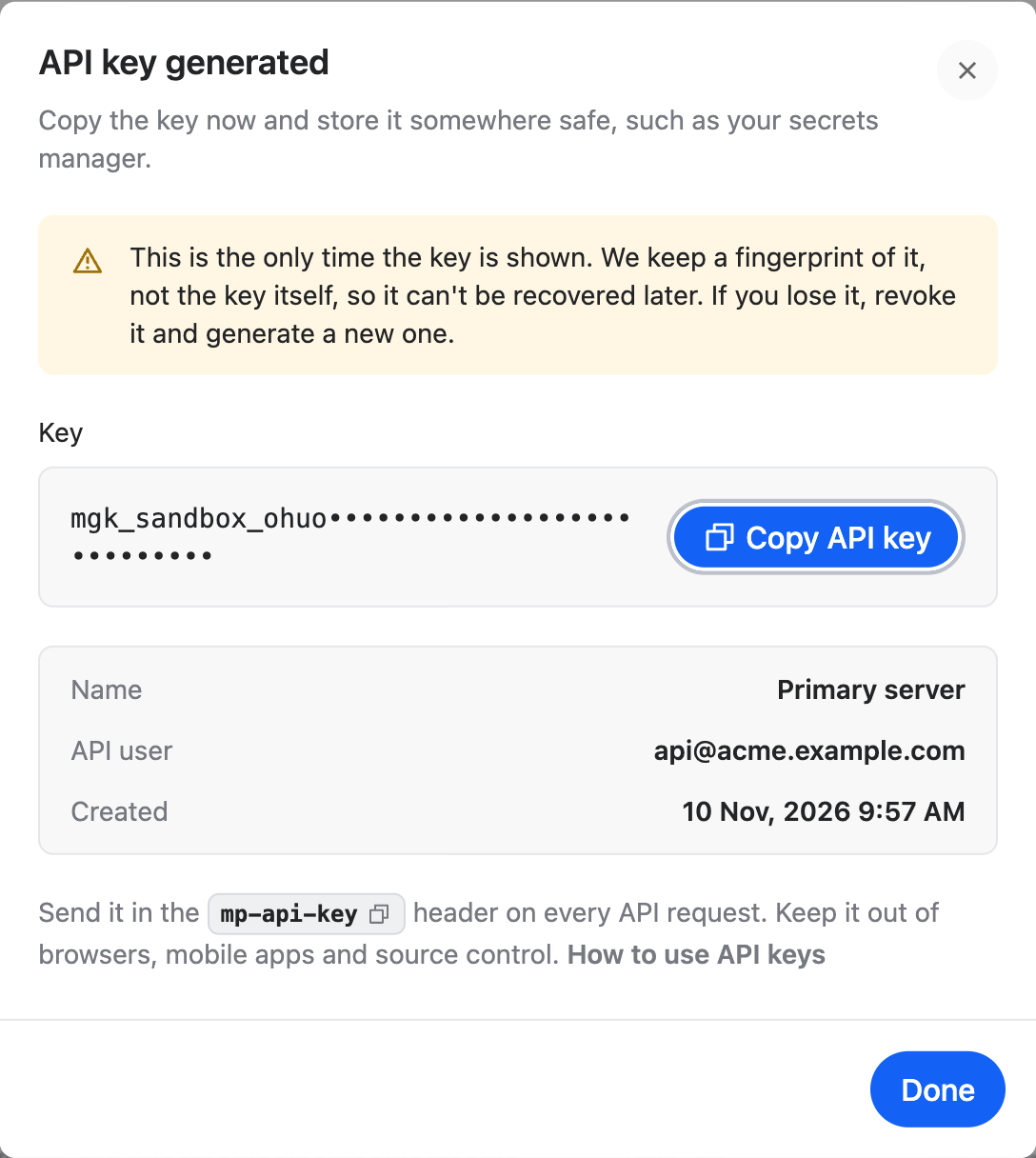
- **Shown once, stored as a fingerprint.** Multigate keeps only a fingerprint of the key (a SHA-256 hash), so nobody, including Multigate support, can show it to you again.
- **No expiry.** A key works until you [revoke it](#revoke-an-api-key), or until its API user or your business stops being active.
- **Two at a time.** Your business can have at most **2 active keys**, so you can [rotate a key](#rotate-an-api-key) without downtime.
- **Managed by people, not by software.** Only dashboard users can generate and revoke keys. An API user can't, even with a valid key (it gets `403`), so a leaked key can't be used to create more keys.
## Your credentials
| Credential | What it is | Where you get it |
|---|---|---|
| **API key** | Authenticates every API request. It starts with `mgk_live_` in production or `mgk_sandbox_` in the sandbox, followed by 49 letters and digits. | The dashboard: **Developer Tool › API Configuration › API keys › Generate API key**. Shown **once**. See [Get an API key](#get-an-api-key). |
| **Client secret** | Signs the [webhooks](../03-webhooks-and-emails/03-verifying-signatures.md) Multigate sends you, so you can check they are genuine. You don't send it on API requests. | **Developer Tool › API Configuration**, shown as the *secret key*. |
The dashboard is [uat.multigate.app](https://uat.multigate.app) for the sandbox and [multigate.app](https://multigate.app) for production. Sandbox and production are separate environments, and each has its own keys: a sandbox key doesn't work in production, and the other way round. The start of a key tells you which one it is for: production keys start with `mgk_live_` and sandbox keys with `mgk_sandbox_`. A key sent to the other environment is refused with `401`.
:::danger[Keep the API key on your server]
Anyone who has your API key can move money from your accounts. Never put it in a mobile app, a browser, a URL, a public repository, a log or a support ticket. Store it in a secrets manager and load it at runtime. If a key may have leaked, [revoke it](#revoke-an-api-key) straight away.
:::
## Get an API key
You generate keys in the dashboard, signed in as a person from your business. The screenshots below are from the sandbox dashboard; production looks the same, with `mgk_live_` keys. Key values in them are masked.
Sign in to the dashboard for the environment you need, choose **Developer Tool** in the menu, and stay on the **API Configuration** tab.
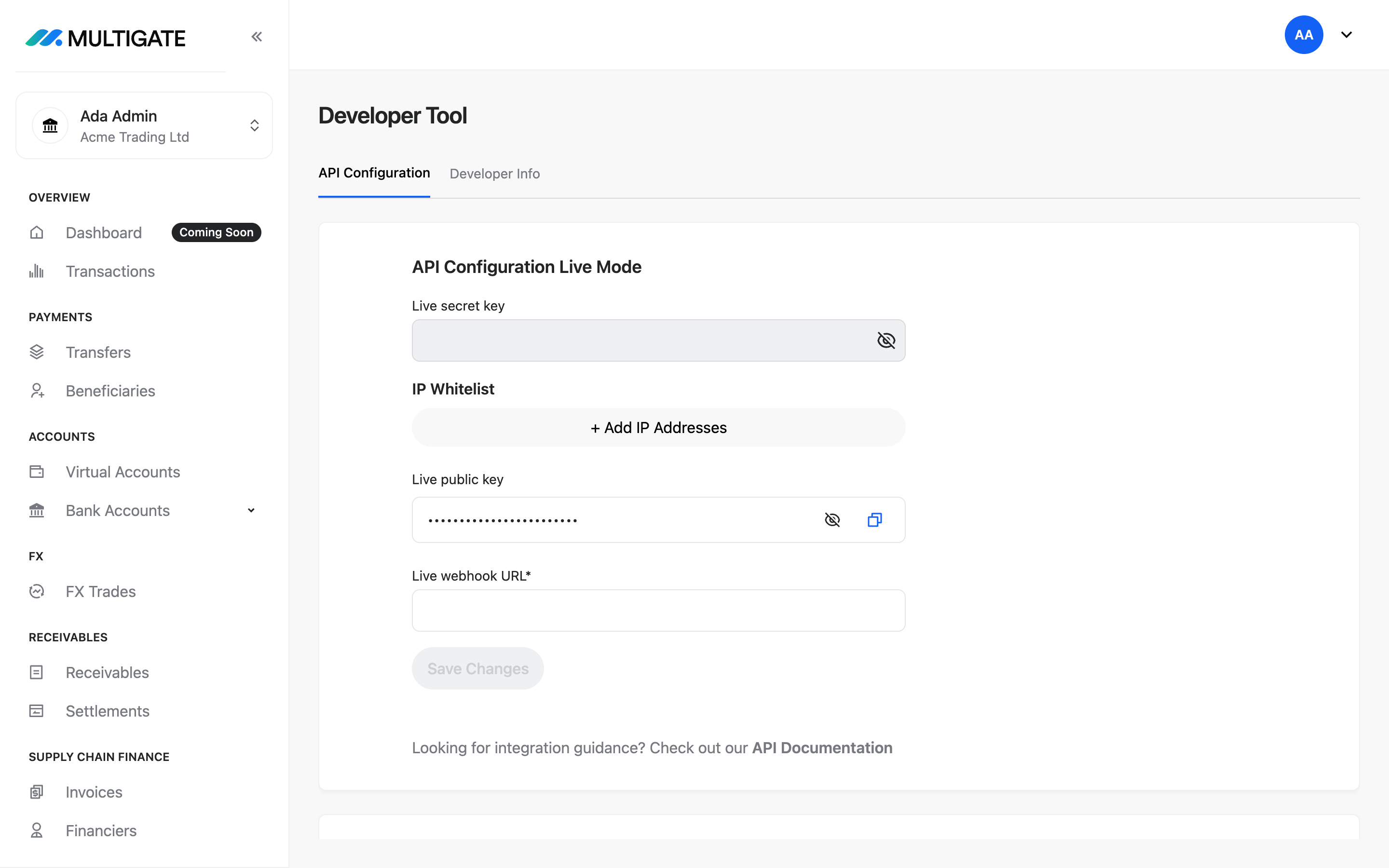
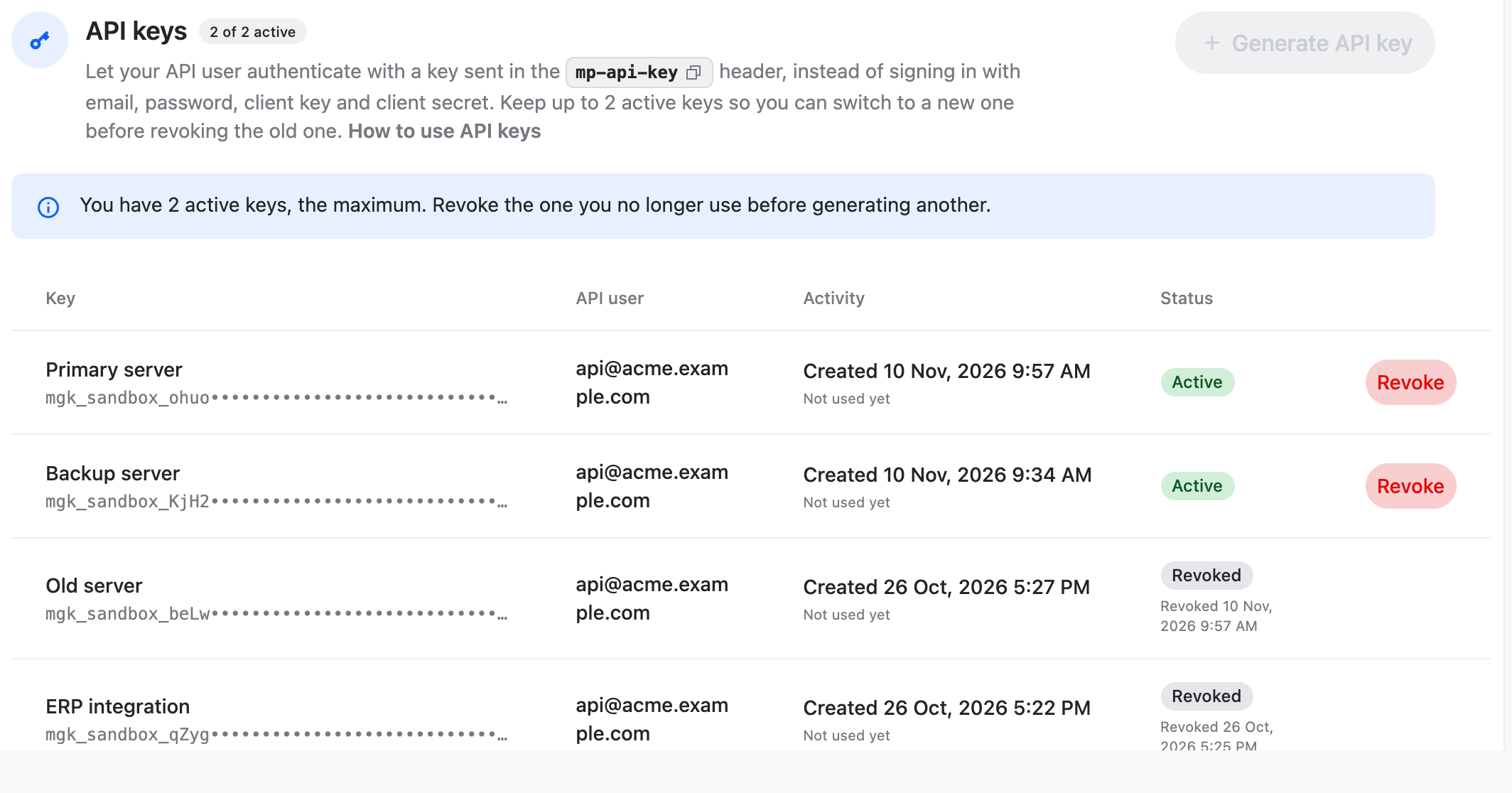
Scroll down to **API keys**. It lists your business's keys, active and revoked, with the API user each acts as, when it was created and when it was last used. The badge shows how many keys are active.
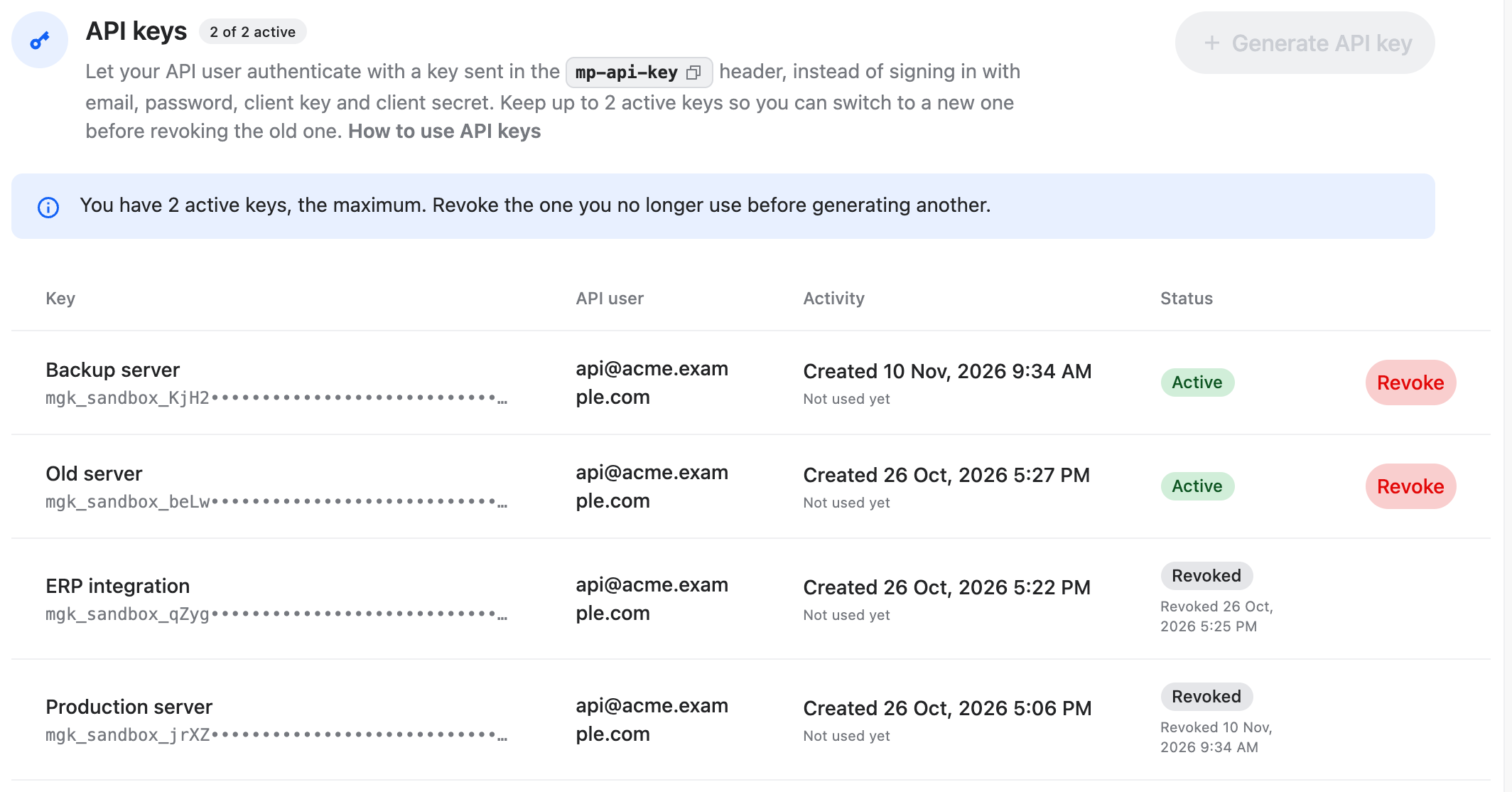
Seeing the list needs the *view client credentials* permission (or *refresh client API credentials*). Generating and revoking keys need *refresh client API credentials*. Your business's administrators have both. If you don't see the section or its buttons, ask your administrator.
If **Generate API key** is greyed out, your business already has 2 active keys: [revoke](#revoke-an-api-key) the one you no longer use first.
Click **Generate API key**, give the key a name (1 to 100 characters) that says where it will be used, such as the server or environment (for example *Primary server*), and click **Generate API key**.
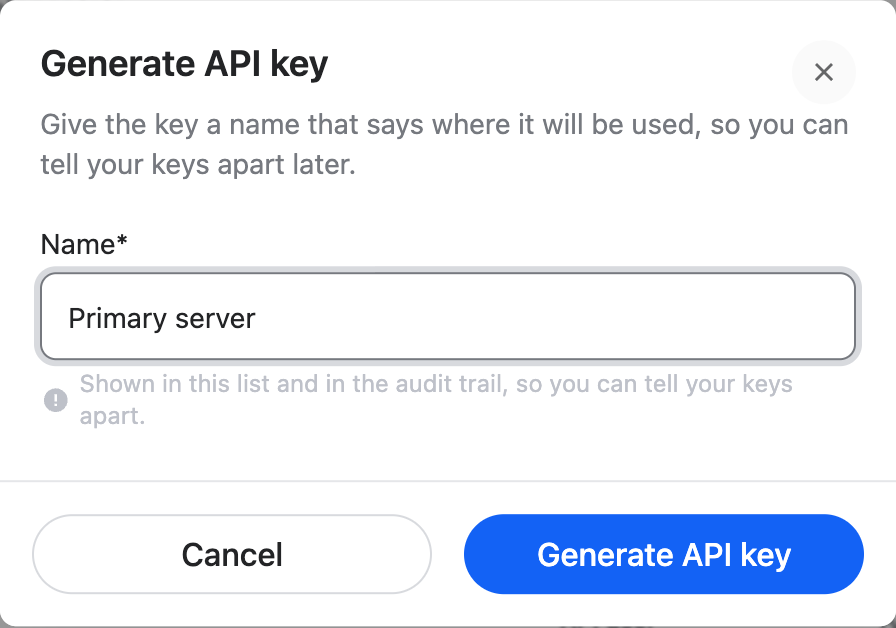
The key belongs to your business's active, approved API user. If your business has no such API user, or has more than one, the dashboard can't create the key ("Choose the API user…" when there are several): contact Multigate support.
Click **Copy API key** and paste the key straight into your secrets manager, then click **Done**. Once the dialog closes the key can't be shown again. If you lose it, generate a new one and revoke the old one.
The new key appears in the list as **Active**. Call [Get the current user](api:getCurrentUser) with it (see [Send the API key](#send-the-api-key)): a `200` with `authMethod` `api_key` confirms it. The key's **Last used** time then starts to move; it is updated at most every 5 minutes.
## Send the API key
Put the key in the `mp-api-key` header of every request. The header name isn't case-sensitive (`MP-API-KEY` works too). The examples use the environment variables from the [Quickstart](03-quickstart.md#before-you-start).
```bash
curl -s "$MG_BASE_URL/client-service/api/v1/accounts" \
-H "mp-api-key: $MG_API_KEY"
```
```javascript
// Node.js 18 or later (built-in fetch).
const BASE_URL = process.env.MG_BASE_URL; // https://api-gateway-uat.mmacs.io/platform
const API_KEY = process.env.MG_API_KEY; // from your secrets manager; never log it
export async function multigateFetch(path, options = {}) {
return fetch(`${BASE_URL}${path}`, {
...options,
headers: { ...options.headers, 'mp-api-key': API_KEY },
});
}
// Example: const res = await multigateFetch('/client-service/api/v1/accounts');
```
```python
# Python 3.8 or later, with the requests package.
import os
import requests
BASE_URL = os.environ["MG_BASE_URL"] # https://api-gateway-uat.mmacs.io/platform
API_KEY = os.environ["MG_API_KEY"] # from your secrets manager; never log it
session = requests.Session()
session.headers["mp-api-key"] = API_KEY
def multigate_request(method, path, **kwargs):
kwargs.setdefault("timeout", 60)
return session.request(method, f"{BASE_URL}{path}", **kwargs)
# Example: response = multigate_request("GET", "/client-service/api/v1/accounts")
```
Things to know:
- **Send one credential, not two.** A request that carries both `mp-api-key` and an `Authorization` header is refused with `401`, because Multigate can't tell which one you meant. Remove any old `Authorization: Bearer …` header when you switch.
- **One key for every product you subscribe to:** customers, accounts, collections, beneficiaries, payouts, FX, statements, receivables, screening, trade finance and the rest, all through the same base URL. You don't need a separate key per product. An endpoint for a product your organisation hasn't subscribed to, or that your API user has no permission for, is refused whichever key you use: it is your access that is checked, not the key.
- **Check a new key** with [Get the current user](api:getCurrentUser). It returns your API user, its permissions and your client ID (`currentAuthenticatedClientId`), and `authMethod` `api_key` confirms the request really used the key.
- **Only in the `mp-api-key` header.** A key in the query string or the request body isn't read, and a key sent as `Authorization: Bearer mgk_…` is refused with `401`.
- **No authenticator code or passkey.** The checks the dashboard adds for people never apply to your API key or your API user: approving each transfer with an authenticator code or a passkey, your organisation's passkey policy, the security review that can hold a transfer sent or approved in the dashboard, sessions tied to one browser and the lock after inactivity. Your [IP allow-list](#ip-allow-list) protects API access instead.
## Rotate an API key
Rotating means replacing a key with a new one, for example every few months, when someone who had access leaves, or after a suspected leak. Because two keys can be active at once, there is no moment when your integration has no working key:
1. **Generate** a second key in the dashboard and store it in your secrets manager.
2. **Deploy** it: switch every server to the new key.
3. **Confirm** traffic works with the new key. In the dashboard list, the new key's **Last used** time starts moving. It is updated at most every 5 minutes, so wait at least that long.
4. **Revoke** the old key. Requests that still use it get `401` from then on.
```mermaid
sequenceDiagram
autonumber
participant Admin as Your administrator
participant Dash as Multigate dashboard
participant Srv as Your servers
participant MG as Multigate API
Admin->>Dash: Generate API key (second active key)
Dash-->>Admin: New key, shown once
Admin->>Srv: Store the new key in the secrets manager and deploy it
Srv->>MG: Requests with mp-api-key: new key
MG-->>Srv: 200
Admin->>Dash: Check Last used on the new key
Admin->>Dash: Revoke the old key
Srv->>MG: Any request still using the old key
MG-->>Srv: 401
```
## Revoke an API key
Revoke a key when you no longer use it, after rotating it, or straight away if it may have leaked. It takes effect at once, in every service: every request with that key then gets `401`. A revoked key can't be turned back on.
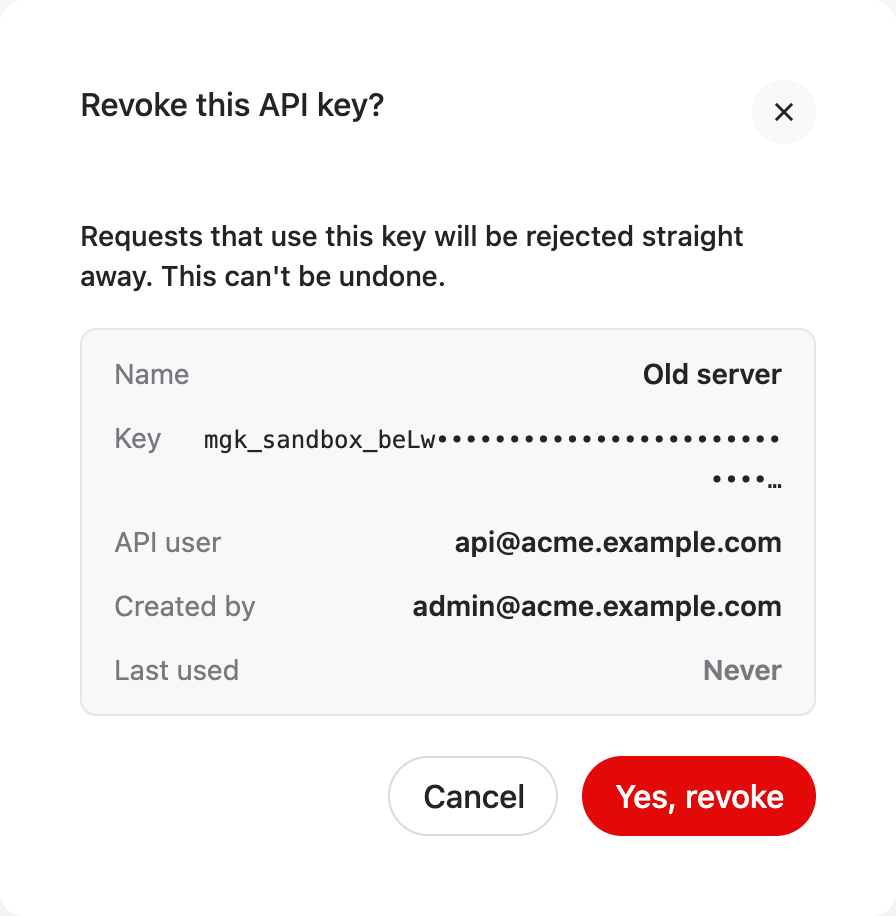
In **Developer Tool › API Configuration › API keys**, find the key by its name and the start of its value, and click **Revoke** on its row.
The dialog shows the key's name, the start of the key, its API user, who created it and when it was last used. Check it is the right key (a recent **Last used** time means something still sends it), then click **Yes, revoke**.
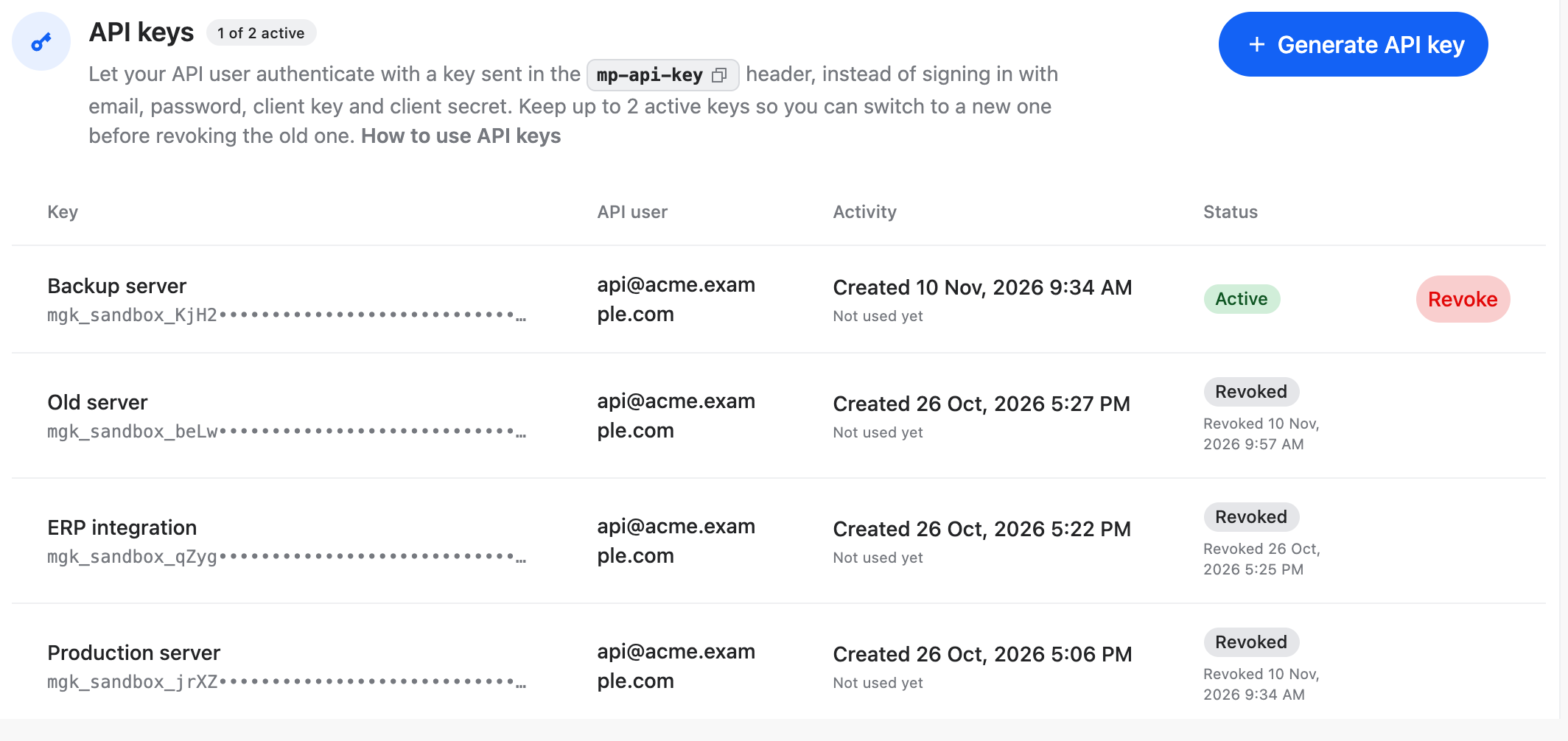
The key stays in the list with the status **Revoked** and the time it was revoked, so you keep a record of it. The active count goes down, and **Generate API key** is available again.
Keys don't expire. A key also stops working, within a couple of minutes, when:
- its API user is deactivated, disabled or no longer approved;
- its API user is removed from your business;
- your business is no longer active on Multigate.
## When a request returns 401
| Status | Message | Cause | What to do |
|---|---|---|---|
| `401` | "Authentication failed" or "Unauthorized", depending on the service | The `mp-api-key` header is missing or empty; the key is mistyped, unknown in this environment, or revoked; or its API user or your business is no longer active. | Don't retry: the same key will be refused again. Check the key against your secrets manager and the dashboard list, and that you are calling the environment the key belongs to. |
| `401` | Same | The request carries both `mp-api-key` and `Authorization`. | Send only `mp-api-key`. |
| `401` | Same | The key was sent in the `Authorization` header (`Authorization: Bearer mgk_…`). | Send it in the `mp-api-key` header instead. |
| `401` | Same | Your business has an [IP allow-list](#ip-allow-list) and this server's address isn't on it. Every service except the user service answers `401` in this case (the user service answers `403`, below). | If a key that works from one server gets 401 from another, check that server's address is on your allow-list. |
A `401` means Multigate didn't process the request, so nothing was created or debited. Once the key is fixed, resend the **same** request (with the same `uniqueRequestId`). Don't retry in a loop: alert someone instead.
:::caution[Don't retry money-moving requests blindly]
A `401` is safe to resend once fixed, because nothing happened. A timeout or a `5xx` is different: the payment may exist. Look it up by its `uniqueRequestId` before you send it again. See [Idempotency](../02-concepts/03-idempotency.md).
:::
## When a request returns 403
| Message | Cause | What to do |
|---|---|---|
| Unauthorized access (`code` `098`) | Your business has an [IP allow-list](#ip-allow-list) and this server's IP address isn't on it. Returned by the user service (for example [Get the current user](api:getCurrentUser)); other services answer `401` instead. | Call from an allowed server, or ask your administrator to add this address. |
| This action is not allowed with an API key. Sign in to the Multigate Platform to manage API keys. | You tried to manage API keys or credentials as an API user. | Keys are managed by dashboard users only. To stop a key working, [revoke it](#revoke-an-api-key) in the dashboard. |
Other `403` responses mean your API user lacks a permission. See [Errors](../02-concepts/02-errors.md#what-to-do-for-each-status).
## IP allow-list
An IP allow-list is a list of server addresses allowed to use your business's API credentials. It protects you if a credential leaks: a stolen API key is useless from any other address.
- **API keys:** checked on **every request, to every service** (payouts, accounts, FX, trade finance and the rest). A request with your key from an address that isn't on the list is refused everywhere, but the status depends on the service: the user service (for example [Get the current user](api:getCurrentUser)) answers `403` "Unauthorized access" (`code` `098`); every other service answers `401` ("Authentication failed", or "Unauthorized" on the payment service), because it treats any refused caller as unauthenticated. If a key that works from one server gets 401 from another, check that server's address is on your allow-list. Multigate checks the address your request arrived from at its edge, not one your request claims, so it can't be faked with a header such as `X-Forwarded-For`.
List your servers' public outbound IP addresses (the address Multigate sees when your server calls out), one address or CIDR range (for example `203.0.113.0/24`) per entry. Manage the list in the dashboard (**Developer Tool › API Configuration › IP Whitelist**) or with [Add or update a client configuration](api:createClientConfiguration). Changes take effect within about a minute.
You also choose **who** the list applies to, with `ipWhitelistScope`. API keys count as API access, so `api_only` applies to them:
| Scope | Who must call from a listed address | When to choose it |
|---|---|---|
| `api_only` | Your API users (API keys) only. People using the dashboard can sign in from anywhere. | Your integration runs on fixed servers, but your team uses the dashboard from changing networks (home, mobile, travel). Without it, a dashboard user is locked out as soon as their network address changes. |
| `ui_and_api` | Your API users **and** your dashboard users. | Your dashboard users always work from known office addresses, and you want the dashboard locked down too. |
If you save addresses without a scope, the list applies to both (`ui_and_api`). Allow-lists that existed before the scope was introduced also apply to both, with their addresses unchanged. To switch, save the configuration again with the scope you want.
The allow-list is enforced in **both** environments, and each environment has its own list. Register your test servers' addresses in the sandbox too. See [Sandbox vs production](05-sandbox-vs-production.md#api-keys-and-ip-allow-list).